SSH Connections
Save and manage SSH connection profiles for remote servers. Use SSH authentication and secure tunnels to access remote services.
Desktop application
Secure Desktop Access to Your Servers
AcuGIS Connect brings secure server access, file management, PostgreSQL connections, and AcuGIS Backup access together in one desktop application. Connect to your servers using SSH and manage essential workflows without switching between multiple tools.
Windows · Intel Macs · Apple Silicon
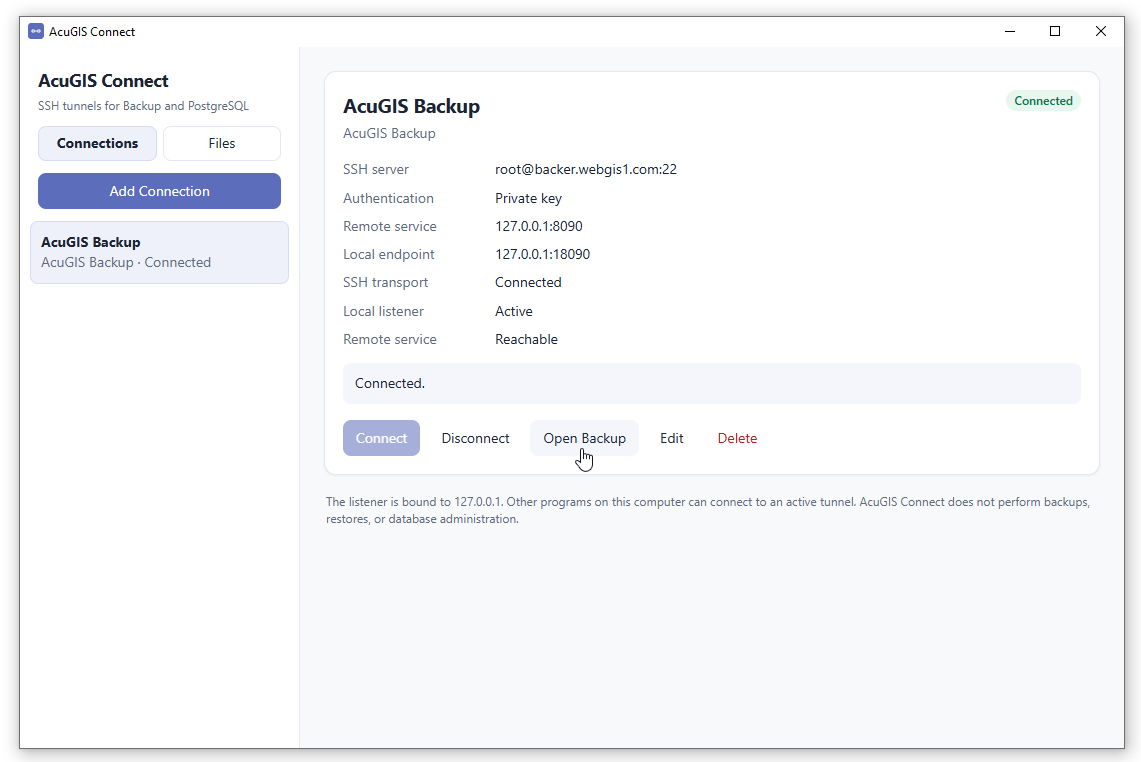
Save an SSH connection once, then use it for files, database tunnels, and AcuGIS Backup.
Save and manage SSH connection profiles for remote servers. Use SSH authentication and secure tunnels to access remote services.
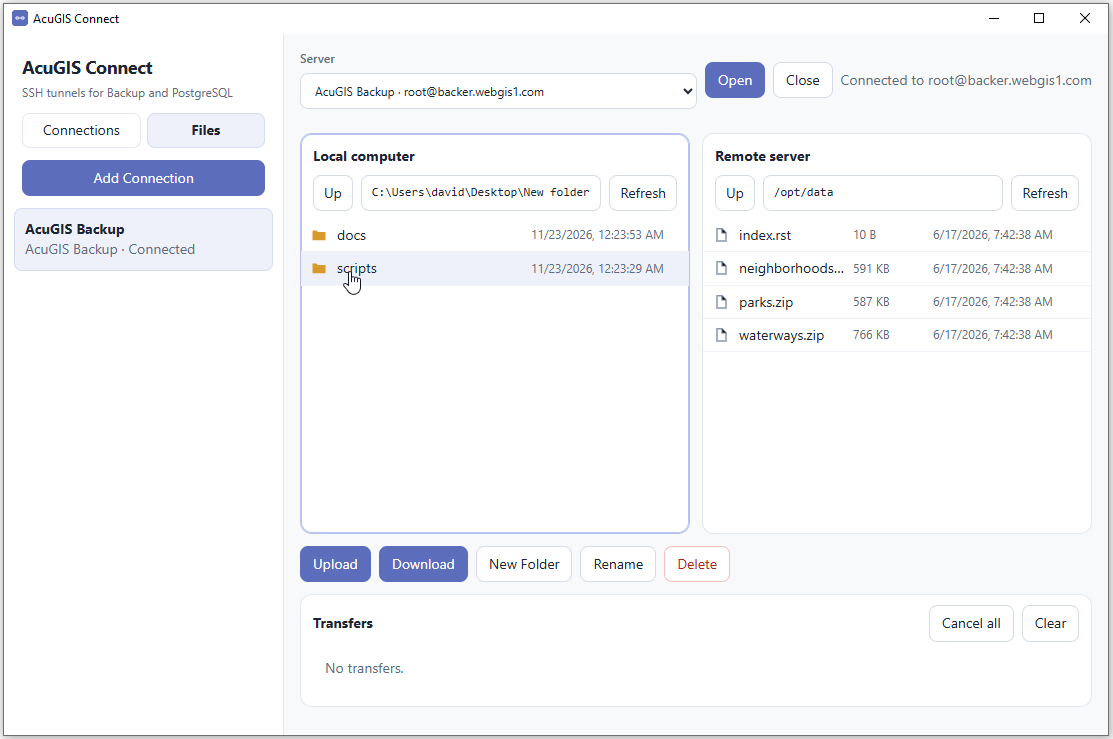
Browse local and remote files using the integrated two-panel SFTP file manager.
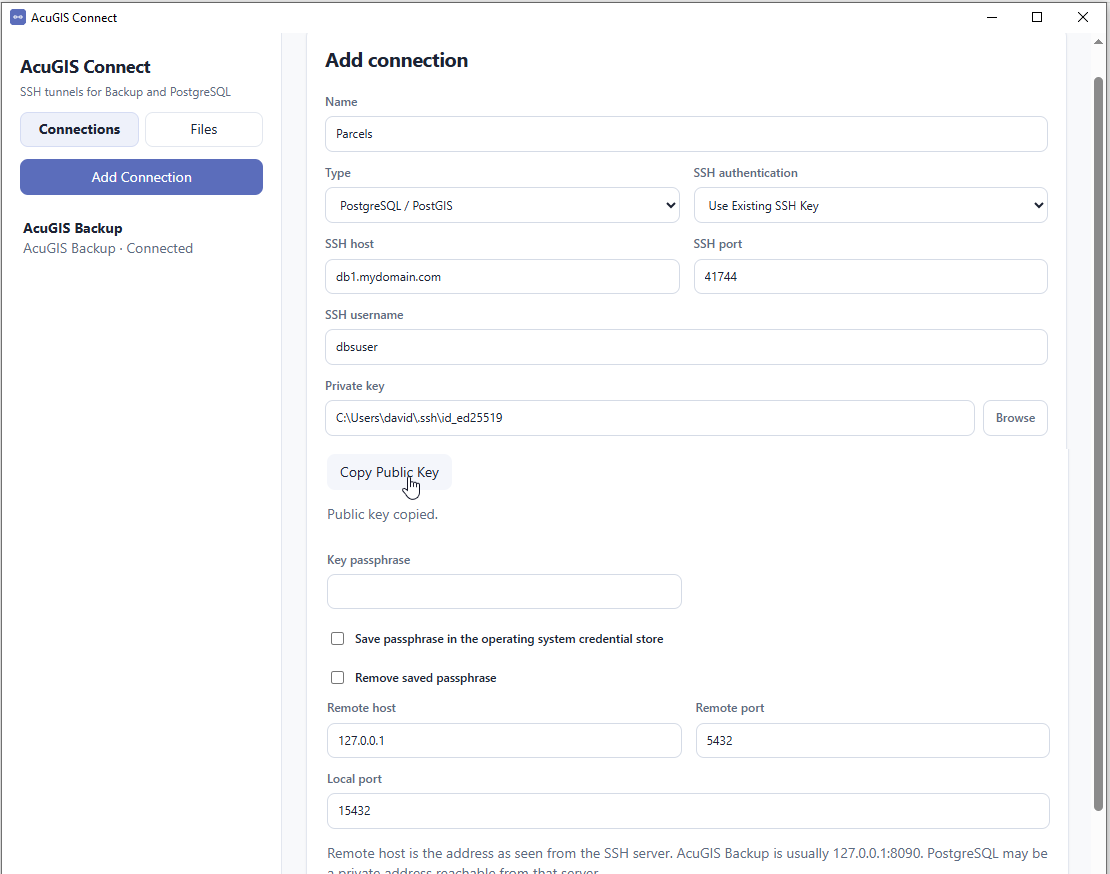
Create secure SSH tunnels to PostgreSQL databases, then connect a desktop database tool through the local tunnel.
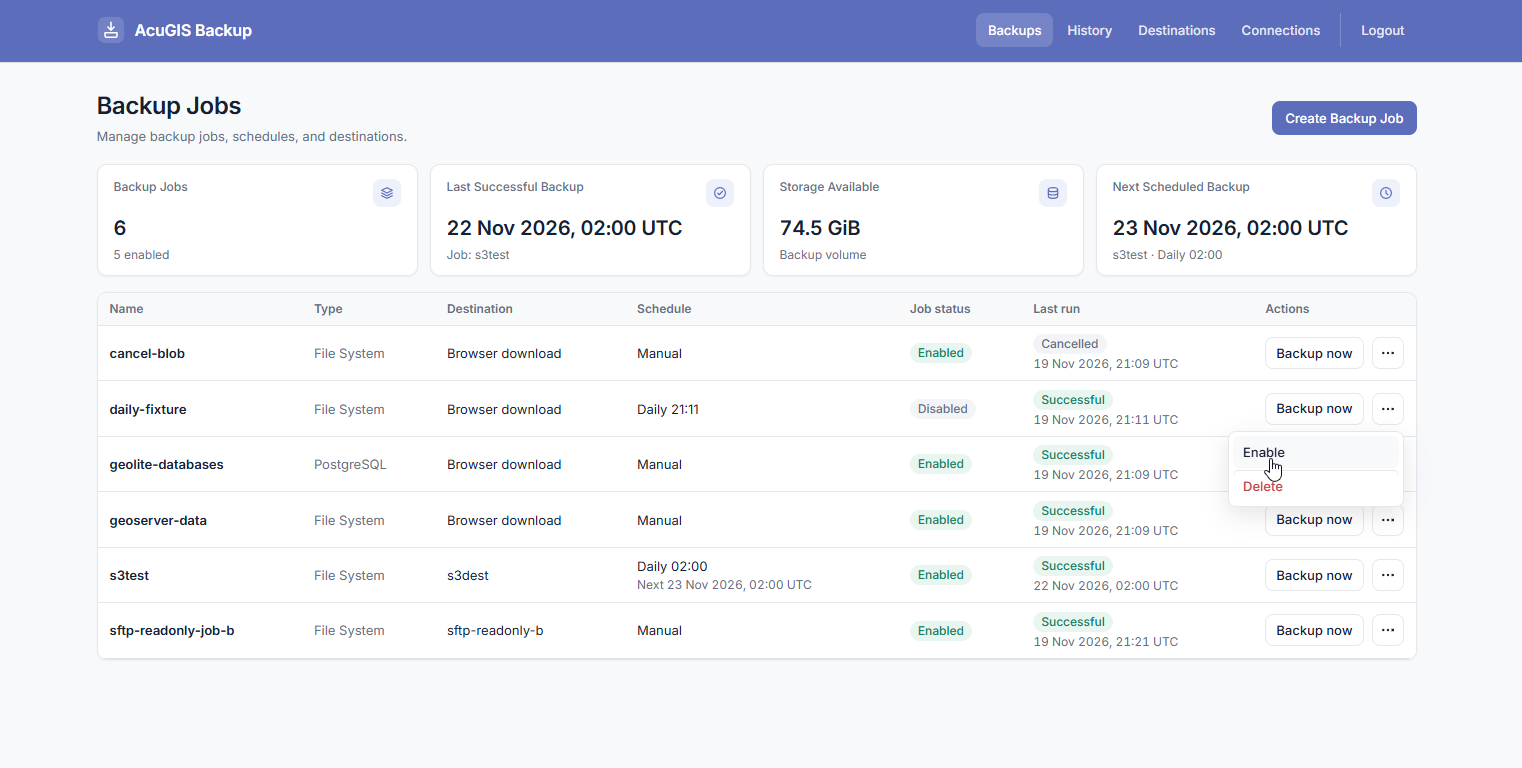
Reach a remote AcuGIS Backup installation through an SSH tunnel and open its existing web interface locally.
File Manager
A two-panel SFTP file manager for local and remote directories.
Browse the server through an existing SSH connection. Transfer files and folders between your computer and the remote host from the same desktop application.
PostgreSQL Tunneling
Connect desktop database tools through SSH.
AcuGIS Connect creates a secure SSH tunnel to a PostgreSQL database. Point a desktop database tool such as pgAdmin at the local tunnel. The database stays off the public internet, and administration stays in the tool you already use.
AcuGIS Backup Access
The Backup web interface stays where it is installed.
Connect securely to a remote AcuGIS Backup installation using SSH tunneling. AcuGIS Connect opens the existing AcuGIS Backup web interface through that local connection. Backup work remains in AcuGIS Backup.
Add a server, connect over SSH, and work from your desktop.
Create an SSH connection profile using your server's hostname, username, and authentication details.
Establish an SSH connection or tunnel to the remote server.
Transfer files, access PostgreSQL through a local tunnel, or open your AcuGIS Backup interface.
AcuGIS Connect is available for Windows and macOS, including Intel Macs and Apple Silicon.
AcuGIS-Connect-Setup-x64.exe
AcuGIS-Connect-macOS.dmg
Download AcuGIS Connect for Windows or macOS and connect over SSH.