AcuGIS Connect
AcuGIS Connect is a desktop application for Windows and macOS. It saves SSH connection profiles and uses them for three tasks:
- Files browses and transfers files over SFTP.
- PostgreSQL / PostGIS opens a local tunnel so a database tool such as pgAdmin or QGIS can reach PostgreSQL.
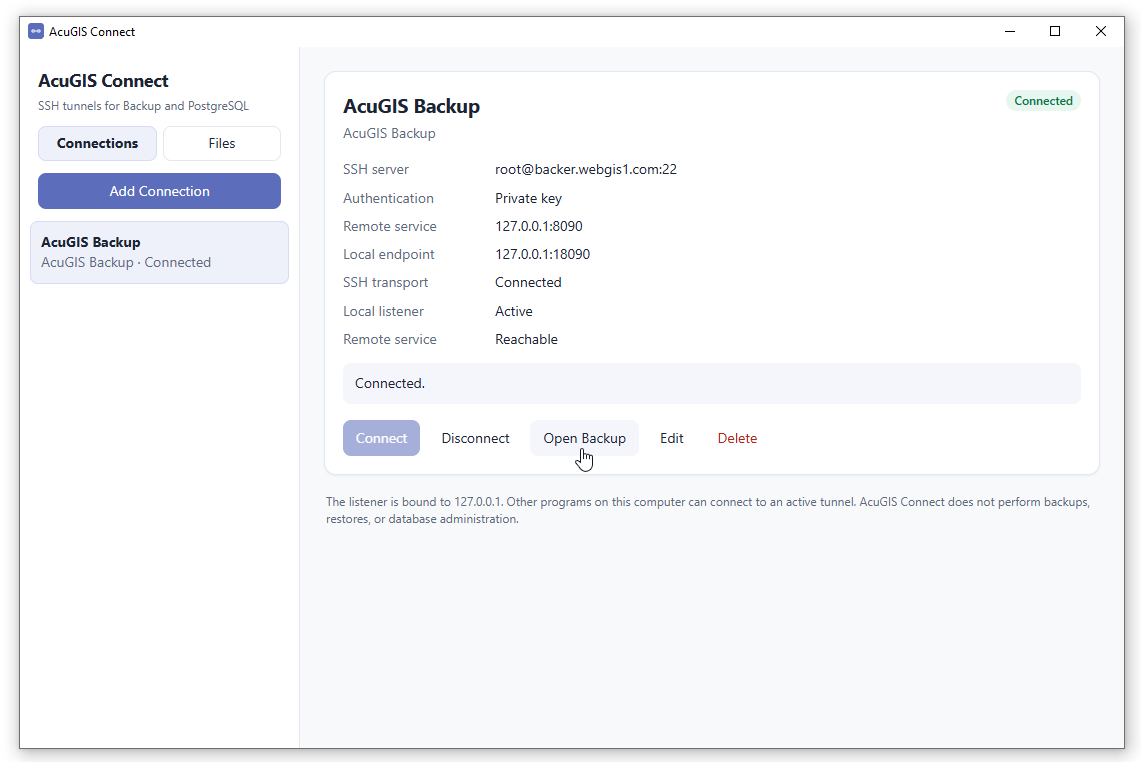
- AcuGIS Backup opens a local tunnel to an existing AcuGIS Backup installation and shows that web interface in your browser.
AcuGIS Connect does not perform backups, restore data, run SQL, or replace the AcuGIS Backup web interface. Database passwords stay in the database client. The Backup application keeps its own login. File transfer uses SFTP only. The application does not open a remote shell or run remote commands.
What you need
- Windows 10 or Windows 11, 64-bit, or macOS on Intel or Apple Silicon
- An SSH account on the server
- Microsoft Edge WebView2 on Windows, which current Windows 10 and Windows 11 installations already include
Normal use does not require an administrator account. The local tunnel listens on 127.0.0.1 only.
Where to go next
| Task | Page |
|---|---|
| Install the application | Installation |
| Create the first connection | Quick Start |
| Save and edit a profile | SSH Connections |
| Keys, passwords, and host keys | SSH Authentication |
| Upload and download files | File Manager (SFTP) |
| Reach PostgreSQL from pgAdmin | PostgreSQL Tunneling |
| Open AcuGIS Backup | AcuGIS Backup Access |
| Install AcuGIS Backup and create a job | AcuGIS Backup |