File Manager (SFTP)
Files is a two-panel SFTP file manager. The left panel is this computer. The right panel is the remote server. It uses a saved SSH connection and does not require AcuGIS Backup or a PostgreSQL tunnel.
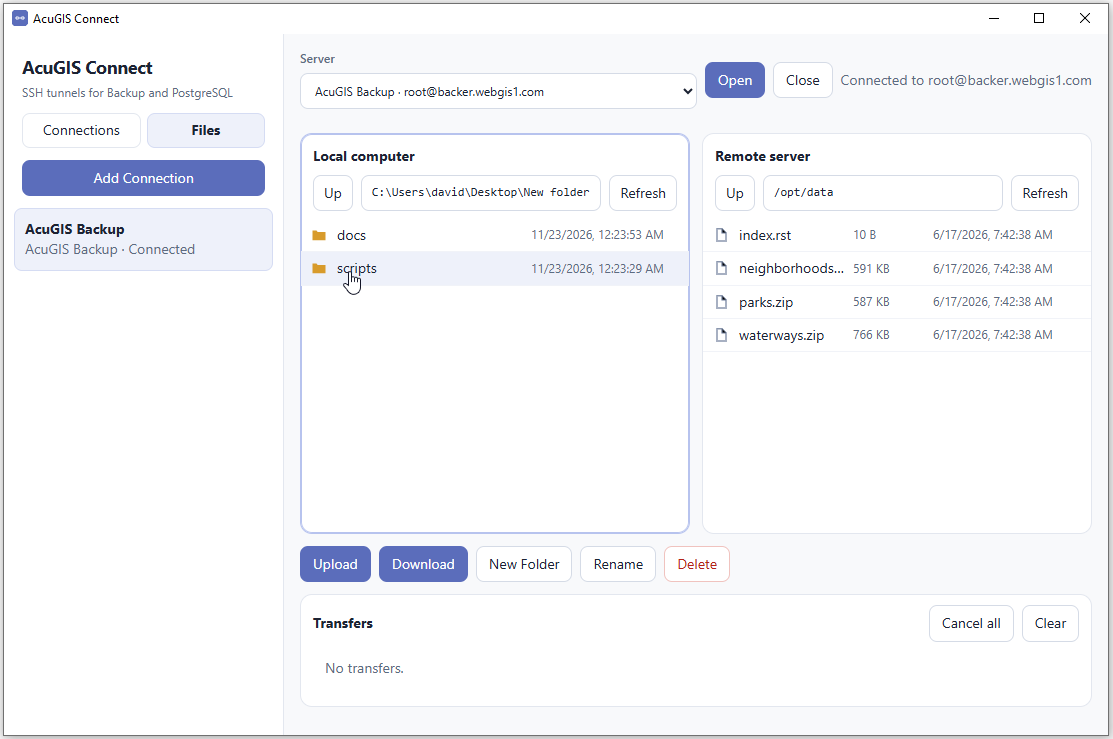
Opening or closing Files does not change a running Backup or PostgreSQL tunnel. The file session is a separate SSH connection with the same profile, authentication, and host-key check.
Open a server
- Click Files.
- Choose a saved connection in Server.
- Click Open.
The local panel starts in your home folder. Until the server is open, the remote panel says Open a server to browse files.
If the password or key passphrase is not saved, enter it and click Open. You can save it in the operating system credential store from that dialog. The first connection to a server asks you to Trust and Open after you check the fingerprint. A changed host key uses the same Forget Saved Key step as a tunnel. See SSH Authentication.
The status line shows Connected to the username and SSH host, or Not connected. Click Close to end the file session only.
Browse
Each panel has the folder path, Up, and Refresh.
- Double-click a folder to open it.
- Click Up to open the parent. On Windows, Up from a drive root opens This PC, which lists the drives. You can also type
This PCin the local path and press Enter. - On macOS, Up stops at the root of the file system.
- Edit the path and press Enter to open that folder.
- Click a panel to choose where New Folder, Rename, and Delete apply. The focused panel is highlighted.
Click a row to select it. Shift-click selects a range. Ctrl-click on Windows, or Command-click on macOS, adds or removes a row from the selection.
Symbolic links are marked link. Folder transfers skip symbolic links and do not follow them.
Upload and download
Uploads and downloads copy the current selection, including folders and the files inside them.
- Open the destination folder in the other panel.
- Select the files or folders to copy.
- Click Upload to send the local selection to the current remote folder, or Download to send the remote selection to the current local folder.
The Transfers list shows each copy, its direction, progress, and status. Cancel stops one transfer. Cancel all stops queued and running transfers. Clear removes finished entries from the list.
If a file already exists, AcuGIS Connect asks before it overwrites anything:
| Choice | Result |
|---|---|
| Skip | Leave that file as it is. |
| Replace | Overwrite that file. |
| Replace All | Overwrite this file and later conflicts in the same transfer. |
| Cancel | Stop the transfer. |
A download is written to a temporary file in the destination folder and renamed only after the copy finishes. A dropped connection marks the transfer failed or cancelled. It does not mark it completed.
New folder, rename, and delete
Click the panel you want to change, then:
- New Folder asks for a folder name and creates it in the current folder.
- Rename requires one selected file or folder.
- Delete removes the selection after you confirm.
Delete removes a file or an empty folder only. A folder that still contains items is not deleted.
What the file manager does not do
- It does not open a remote shell or run a remote command.
- It does not keep transferring after you quit AcuGIS Connect. Quit cancels file transfers.
- It does not disconnect an active Backup or PostgreSQL tunnel when you click Close.