SSH Connections
A connection profile stores the SSH server, the authentication method, and the service you want to reach. Passwords and key passphrases are not fields in the profile. When you choose to save them, they go to Windows Credential Manager or the macOS login Keychain.
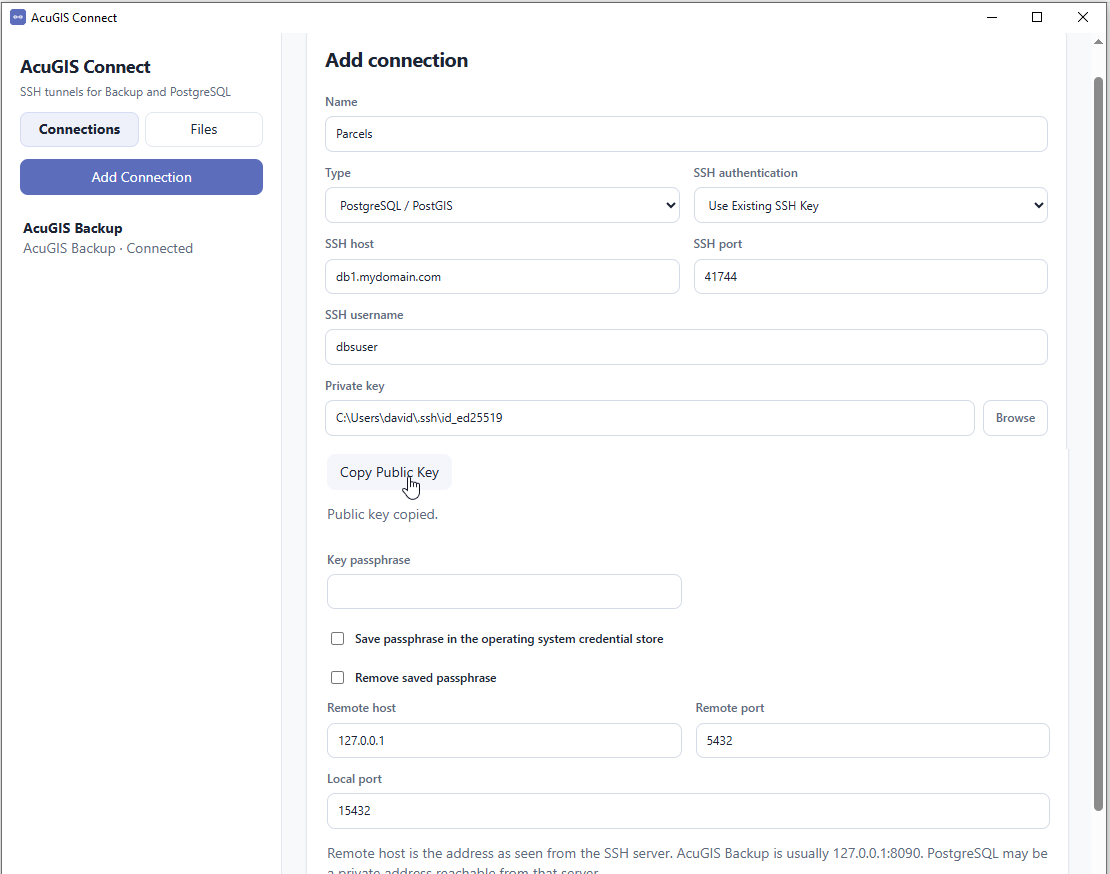
Create a connection
- Click Add Connection.
- Fill in the form and click Save.
| Field | What to enter |
|---|---|
| Name | Up to 80 characters. This is the name in the connection list. |
| Type | AcuGIS Backup or PostgreSQL / PostGIS. |
| SSH authentication | Use Existing SSH Key, Generate New SSH Key, SSH Agent, or SSH Password. |
| SSH host | Hostname or IP address of the SSH server. |
| SSH port | 1 through 65535. The form starts at 22. |
| SSH username | The SSH account. Spaces are not allowed. |
| Remote host | Address of the service as seen from the SSH server. Starts at 127.0.0.1. |
| Remote port | Port of that service. Backup starts at 8090. PostgreSQL starts at 5432. |
| Local port | Port on this computer. 1024 through 65535, so the listener does not need administrator rights. Backup starts at 18090. PostgreSQL starts at 15432. |
Changing Type changes the suggested remote and local ports. You can edit those ports before you save.
Advanced
Open Advanced only when the defaults are not right for the network.
| Field | Allowed range | Form default |
|---|---|---|
| Timeout (seconds) | 1–120 | 20 |
| Keepalive (seconds) | 5–300 | 30 |
| Reconnect attempts | 0–20 | 5 |
A reconnect value of 0 means a dropped SSH session stays disconnected until you click Connect again. File transfers are not retried automatically.
Use a saved connection
The list shows each profile and its state: Disconnected, Connecting, Connected, Reconnecting, or Error.
Select a profile to see:
- SSH server, as
username@host:port - Authentication method
- Remote service
- Local endpoint,
127.0.0.1and the local port - Whether the SSH transport, the local listener, and the remote service are up
Then use the buttons on that profile:
| Button | Action |
|---|---|
| Connect | Open the SSH tunnel. |
| Disconnect | Close that tunnel. Other tunnels keep running. |
| Open Backup | Open the local Backup address in the browser. Shown only for an AcuGIS Backup profile, and only while the listener is active. |
| Copy Connection Details | Copy Host: 127.0.0.1 and Port: with the local port. Shown only for a PostgreSQL / PostGIS profile. |
| Edit | Change the saved profile. |
| Delete | Remove the profile and any SSH secret saved for it. An active tunnel for that profile is disconnected. |
The listener is bound to 127.0.0.1. Other programs on this computer can connect to an active tunnel. AcuGIS Connect does not open the port on the network.
If a tunnel is still listening and you edit the local port, the new port is used the next time you connect. The window warns when the active listener is still on the previous port.
Edit or delete
Click Edit, change the fields, and click Save. Cancel leaves the saved profile as it was.
To replace a saved password or passphrase, edit the profile, enter the new secret, leave the save checkbox selected, and save. Select Remove saved password or Remove saved passphrase when you want the next connection to ask again.
Delete asks you to confirm. The saved connection and any password stored for it are removed.
More than one tunnel
Each active connection needs its own local port. Starting a second connection does not stop the first. Disconnect stops only the selected profile.
Closing the window while a tunnel is active asks whether to disconnect and quit. Cancel, or No on the Windows dialog, leaves the tunnels running and the window open. Confirming closes every tunnel, cancels file transfers, and exits. AcuGIS Connect does not keep running from a tray icon.
Opening Files uses the same saved profile but a separate SSH session. Closing the file manager does not disconnect a Backup or PostgreSQL tunnel.